Introduction
Then comes the time for installing WordPress, choosing a theme and launching your site with high hopes, but then you realize that changing the layout, adding widgets and making a professional homepage is not as easy as you thought it would be with the default editor of WordPress.
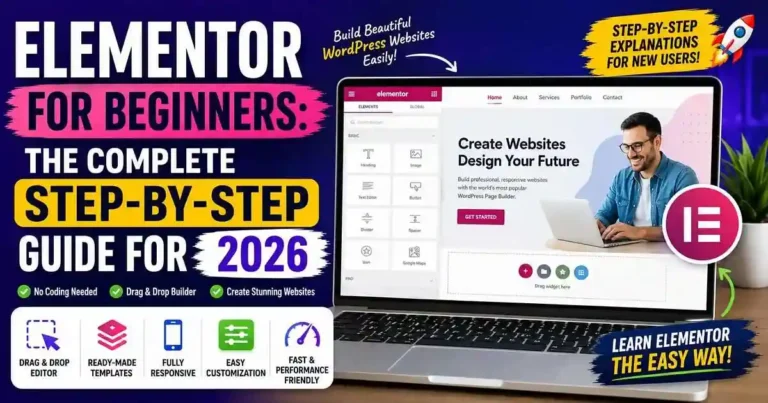
That is where the Elementor for Beginners guide comes in very handy indeed. Elementor is one of the most used drag & drop website builders for WordPress, which allows everybody to build beautiful sites without writing any line of code. Whether you are making a blog, a business website, portfolio or an online store – Elementor offers complete control over all website elements.
The Elementor for Beginners guide will teach you everything there is to know about Elementor.
Table of Contents
- What Is Elementor?
- Why Beginners Love Elementor
- Elementor Free vs Elementor Pro
- Installing Elementor
- Understanding the Elementor Interface
- Building Your First Page
- Essential Widgets Every Beginner Should Know
- Responsive Design Tips
- SEO and Performance Best Practices
- Common Mistakes
- Frequently Asked Questions
- Conclusion
What Is Elementor?
Elementor is a page builder that works on WordPress platform. In this case, you do not have to engage yourself in any coding since all the editing and customizations that need to be done on a specific theme do not require coding at all since you will just be dragging and dropping elements into their rightful places.
Examples of pages that you can create using Elementor are:
• Home page for blogs
• Landing pages
• Business site
• Portfolios sites
• E-commerce sites
• Services pages
• Contact pages
• About pages
Why Beginners Choose Elementor
Most of the newcomers find conventional website builders quite complicated because you need to know at least a bit about coding.
And here comes the perfect option for your problems called Elementor.
Advantages of Elementor include:
• Codeless design
• Live visual builder
• Hundreds of ready-made templates
• Mobile-ready controls
• Drag-and-drop functionality
• Library of widgets
• High compatibility with the majority of WordPress themes
From now on, you don’t need to hire a web designer for all your changes on the site anymore.
Elementor Free vs Elementor Pro
One of the first questions beginners ask is whether they need Elementor Pro.
The answer depends on your goals.
Elementor Free
This is appropriate for use by:
• Personal blogs
• Simple websites
• Portfolios
• Landing pages
• Learning Elementor
It contains:
• Drag-and-drop editor
• Basic widgets
• Responsive editing
• Templates library
• Basic page templates
For most people starting out, this should be sufficient.
Elementor Pro
Elementor Pro comes with extra features that include:
• Theme Builder
• Header & Footer Builder
• WooCommerce Builder
• Popup Builder
• Form Builder
• Motion Effects
• Dynamic Content
• Premium Templates
• Marketing Integrations
These make your work much easier when creating websites for clients or your online business.
How to Install Elementor
Installation of Elementor Plugin is quite simple.
Step 1
Initially, Login to the WordPress Admin panel.
Step 2
Then, Go to
Plugins >> Add New
Step 3
Search for
Elementor Website Builder
Step 4
Click on:
Install Now
Step 5
Lastly, Activate the plugin using:
Activate
Now, you have the Elementor plugin installed in your website.
Understanding the Elementor Interface
When you open Elementor, the screen is divided into two main areas.
Left Sidebar
This contains all available widgets, including:
- Heading
- Image
- Text Editor
- Button
- Video
- Icon Box
- Divider
- Spacer
- Gallery
- Testimonials
Simply drag a widget onto the page.
Live Preview Area
The larger section displays your webpage exactly as visitors will see it.
Every change updates instantly, making website design much easier than editing code or refreshing the page repeatedly.
Building Your First Page
Creating your first page takes only a few minutes.
Create a New Page
Navigate to:
Pages → Add New
Give your page a title.
For example:
Home
Click Edit with Elementor.
Add Your First Section
Click the “+” button.
Select a layout, such as:
• Single column
• Double column
• Triple column
Each section is a building block for your site.
Add Widgets
Place widgets into your layout.
Examples include:
• Title
• Text
• Image
• Button
Widgets can be moved around at any time.
Style Settings
There are style options for each widget:
• Typography
• Color
• Margins
• Padding
• Background
• Borders
• Animations
This gives you control over design without CSS coding.
Essential Elementor Widgets Every Beginner
Should Know
Elementor comes with dozens of widgets, but beginners only need to master a handful to build impressive websites. Learning these core widgets first will help you design pages faster without feeling overwhelmed.
1. Heading Widget
Heading Widget
This widget is among the most widely used widgets.
Uses of this widget include:
• Page title
• Title for headings of various sections
•(Call to action title
• Feature title)
Remember: It is important to always maintain proper heading structure (H1, H2, H3).
2. Text Editor Widget
This widget is similar to the default WordPress editor.
You can use it to add:
- Paragraphs
- Lists
- Links
- Basic formatting
Keep paragraphs short and easy to scan, especially for blog readers.
3. Image Widget
Images help to make a website more interesting.
Prior to uploading the images:
• Make sure to compress the large size file
• Give your image file name something descriptive
• Use ALT tags
• Always use WebP formats if possible
4. Button Widget
Buttons encourage visitors to take action.
Examples include:
- Read More
- Contact Us
- Download Now
- Get Started
- Subscribe
Choose clear button text instead of generic labels like “Click Here.”
5. Icon Box Widget
Icon Box contains the icon, title and description. This module suits perfectly for displaying:
• Services
• Features
• Advantages
• Highlights of products.
Instead of writing long paragraphs, one can communicate the information through this visual arrangement.
6. Video Widget
Videos are being utilized for demonstrating the products, tutorial videos and services.
Videos from different sites such as YouTube and Vimeo can be integrated using Elementor without coding.
Excessive videos on one page will cause slowness in loading.
7. Spacer Widget
Good design isn’t just about adding content—it’s also about giving that content room to breathe.
The Spacer widget helps create balanced layouts and improves readability by adding white space between sections.
Using Elementor Templates
Not all pages need to be designed from scratch.
The Elementor platform offers you a range of professional templates that can be customized.
Here are some of the uses of this template:
• Home Page
• About Page
• Contact Page
• Landing Page
• Sales Page
• Portfolio Page
Do not waste time designing everything; just make use of templates and customize them according to your branding needs.
Global Fonts and Colors
One common error that newbies make is altering the font and color one by one on different pages.
You can make use of Elementor’s Global Settings feature.
With this, you can specify the following:
• Primary Font
• Secondary Font
• Heading Style
• Accent Color
• Background Color
• Link Colors
Consistency with branding gives your website a more professional touch.
Responsive Design with Elementor
More than half of traffic comes from mobile phones.
Whereas the same layout that looks good on the desktop might look bad on mobiles, Elementor has responsive editing capabilities that will allow you to edit and preview your layout designs for:
• Desktop
• Tablet
• Mobile
Some Tips for Responsive Web Designs
• Readability of text on smaller screens.
• Sensible-sized images.
• Adequate space between buttons.
• Columns usage on mobiles.
• Test pages before going live.
Mobile phone-friendly websites have their advantages both in terms of enhancing user experience and SEO rating.
Elementor and SEO Best Practices
Elementor doesn’t automatically improve SEO, but it provides tools that make optimization easier.
Proper Heading Structure
There should be on your page:
• One H1 tag
• Several H2 tags
• H3 tags when needed
Optimization of Images
Images have to be equipped with the following features:
• A good file name
• ALT text
• Image file size reduction
Largely sized images are among the most frequent reasons why websites take long to load.
Ensure that Pages Load Quickly
A page that looks good but takes too long to load will not be very helpful.
Eliminate unnecessary components such as:
• Big animations
• Too many fonts
• Too many widgets
• Heavy videos on the background
Simple designs usually work better than complicated designs.
SEO Plugin Compatibility
Elementor is compatible with the following SEO plugins:
• Rank Math
• Yoast SEO
• All in One SEO
The SEO plugins assist in optimizing:
• Meta titles
• Meta description
• XML sitemap
• Social sharing
• Schema markup
Performance Tips for Elementor Websites
Some people claim that the websites created by Elementor are slow by default.
But the performance of your website depends mainly on how you build your webpages.
Below are some recommendations on how to create websites efficiently:
• Use lightweight WordPress templates.
• Uninstall all unused plugins.
• Optimize your images before uploading.
• Limit the usage of animations and other effects.
• Install caching.
• Use CDN in case of an international audience.
• Update WordPress, Elementor, and plugins regularly.
Practical Example
Now, let’s consider the issue of how to make the homepage of a freelance graphic designer.
In contrast to the text block, the homepage is made as follows:
1. The hero section containing the headline and the call-to-action button.
2. The services section utilizing the Icon Boxes.
3. The gallery section which contains the portfolio of completed works.
4. The testimonials section.
5. The contact form section.
6. The footer section which contains the icons of social networks.
All the sections stated above can be made in Elementor without any coding at all.
Actionable Tips
• Begin using the free version first.
• Take advantage of templates.
• Master a couple of widgets at a time.
• Maintain simplicity in your design.
• Make sure to optimize images before uploading them.
• Check your pages across desktop, tablet, and mobile.
• Update Elementor often.
• Always back up your website before you make any major changes to the design.
Common Mistakes Beginners Should Avoid
Even though Elementor is designed to be beginner-friendly, it’s easy to make mistakes that affect your website’s appearance, performance, or SEO. Being aware of these issues early can save you hours of troubleshooting later.
1. Using Too Many Widgets
While designing your page using the drag and drop method, you may find yourself adding all widgets on your page to make it appealing to viewers. This way, you will use so much on your page thus making it untidy and slow.
Instead: Structure your page using only the required widgets.
2. Failing to Optimize Your Page for the Mobile Device
Whereas your page may seem okay when looked at through a desktop, it may distort itself when viewed from a mobile device such as a mobile phone or tablet.
Note: Test the appearance of your page in:
• Desktop
• Tablet
• Mobile
3. Using Too Many Plugins
Although Elementor has so many plugins, it will do you some good if you use only the required plugins.
Avoid using unnecessary plugins.
4. Various Fonts and Colors Usage
Too much use of various fonts and colors may ruin the design of your website.
Strive to make the design of your website as simple as possible by limiting the number of:
• two fonts,
• the same colors on the website,
• the same buttons design.
5. Ignoring Basic Rules of SEO
However perfect the design of your website is, it won’t attract any visitors without proper optimization.
Each page of your website should have:
• SEO optimized title,
• meta description,
• headings,
• SEO optimized images (ALT texts),
• internal links.
6. Not Saving Your Work on Website
Always remember to save your work done on the website.
Also, it would be wise to create a copy of your website prior to redesigning it and changing the plugins.
Practical Example
Let us assume that you have a bakery business and require a professional website for it.
Using Elementor, you can create a website which will include:
• Hero Section – Welcome headline with background image of your bakery.
• About Us – Introduction of your business.
• Featured Products – Cakes, pastries, breads displayed in a grid format.
• Testimonials – Customer reviews section.
• Contact Section – Your address, timings, contact details, Google map link.
• Call to Action – “Place an Order” button which redirects to your contact page / order page.
This layout is very easy to create using the drag & drop editor of Elementor.
Frequently Asked Questions
1. Is Elementor available free of charge?
Yes. Elementor has a free version that provides all the basic functionalities required to create blogs, portfolios, businesses’ websites and landing pages. Elementor pro will have additional functionalities like design, theme creation, forms and marketing tools.
2. Do you require coding skills for using Elementor?
No. Elementor does not require coding skills. Without knowing any HTML, CSS and JavaScript coding, one can create great looking sites using Elementor.
3. Does Elementor help in SEO?
While Elementor may not assist in improving your website ranking in search engines, it may provide some functionalities that could be useful for SEO purposes.
4. Will Elementor be compatible with all WordPress themes?
The compatibility between Elementor and the majority of the latest WordPress themes is possible. Light-weight themes, including Hello Elementor, Astra, GeneratePress, and Kadence, will show the best results regarding the flexibility and performance when using Elementor.
5. Is it logical to buy Elementor Pro for beginners?
Definitely not at all. You need to get used to Elementor usage and understand whether you require such options as Theme Builder, Popup Builder, WooCommerce Builder, and many more.
Conclusion
And one of the best ways to create professional WordPress websites without knowing anything about technical stuff is to learn Elementor for beginners. This is an extremely powerful tool which offers the user a drag-and-drop editor, many templates and responsive tools, and with its help you will be able to create your own website regardless of its purpose.
No matter which features of Elementor you prefer to use, the key thing is to understand basics of the software and use them always. You have to create well-designed layouts, mobile responsive websites, fast loading web pages, and good content. Using Elementor you will be able to move forward to more complex features and keep your website simple.












Your comment will appear immediately after submission.